Connecting Google with a Service Account
Set up a Google Cloud service account to connect Google Analytics, Search Console, Tag Manager, and Google Ads with scoped access and your own API quota.
A service account is a Google account for software instead of a person. It has its own email address ending in iam.gserviceaccount.com, and you grant it access to your Google properties the same way you’d add a colleague: by adding that email as a user with the role you choose.
This is the recommended way for agencies and technical users to connect the Google services. Compared to “Connect with Google” (OAuth), a service account:
- Scopes access precisely. The connection can only see the exact GA4 properties, Search Console sites, Tag Manager containers, and Google Ads accounts you share with it - nothing else from anyone’s personal account.
- Isn’t tied to a person. OAuth connections break when the person who signed in leaves the team, changes their password, or revokes app access. A service account keeps working.
- Uses your own API quota. OAuth requests go through the shared AI Data Stream application, so heavy usage shares one pool. Service account requests are attributed to your Google Cloud project, with your own rate limits.
- Reuses one setup everywhere. Create the service account once, then use the same JSON key for GA4, Search Console, Tag Manager, and Google Ads across all your properties. Agencies can create one per client for hard separation.
The trade-off: about 15 minutes of one-time setup in Google Cloud Console. This guide walks through every step.
Google Ads and API access. Google retired developer tokens in September 2026; Google Ads API access now follows the Google Cloud project that owns the credentials. With a service account that is your project, so enable the Google Ads API there and check it has Basic access under Cloud Console → Google Ads API → Overview. A project that has never used the Google Ads API starts with test access and won’t read live campaigns. If you’d rather skip that step, connect Google Ads with Connect with Google instead - it runs under our approved application.
How It Works
The whole setup is three ideas:
- Create a service account in a Google Cloud project you own. Google gives you a JSON key file - the service account’s credentials.
- Share your properties with the service account’s email address (found in the JSON as
client_email), using each platform’s normal user management. - Paste the JSON into AI Data Stream when adding a connection. We fetch the properties the service account can see, you pick one, done.
The service account can only read what you’ve explicitly shared, and every credential is stored encrypted.
Step 1: Create a Google Cloud Project
If you already have a Google Cloud project, you can reuse it and skip ahead.
- Go to console.cloud.google.com
- Sign in with any Google account (this account only owns the project; it doesn’t need access to your analytics data)
- Click the project selector in the top bar, then New project
- Name it something recognizable, like
aidata-connections, and click Create - Make sure the new project is selected in the top bar before continuing
All the APIs used here are free - there are no per-call charges for any of these connections. Depending on your account, Google may still ask you to link a billing account when you create a project (organisation and Workspace accounts often do). Linking one doesn’t mean you’ll be billed for these APIs.
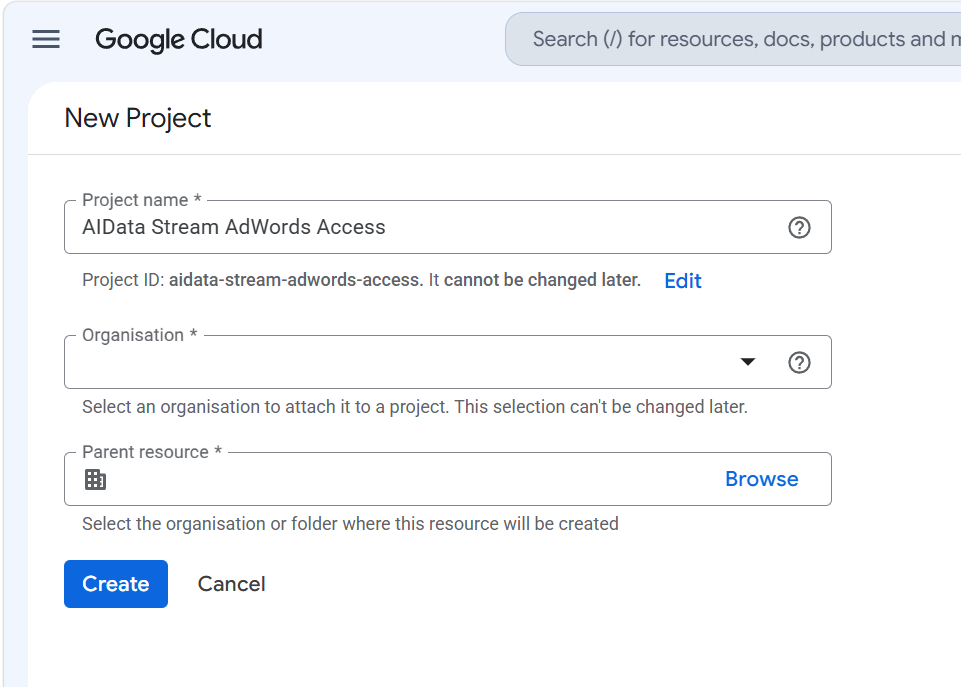
The name is only a label - pick whatever you’ll recognise later. If your account belongs to a Google Cloud organisation you’ll also be asked for a parent; a personal account leaves those fields empty.
Step 2: Enable the APIs
APIs must be enabled in the same project as the service account. Only enable the ones matching the connections you plan to use:
| Connection | API to enable |
|---|---|
| Google Analytics 4 | Google Analytics Data API and Google Analytics Admin API |
| Google Search Console | Google Search Console API |
| Google Tag Manager | Tag Manager API |
| Google Ads | Google Ads API |
For each one:
- Open the link above (or go to APIs & Services → Library and search for the name)
- Check the correct project is selected in the top bar
- Click Enable
GA4 needs both APIs: the Data API answers reporting queries, and the Admin API lists your properties and handles annotations.
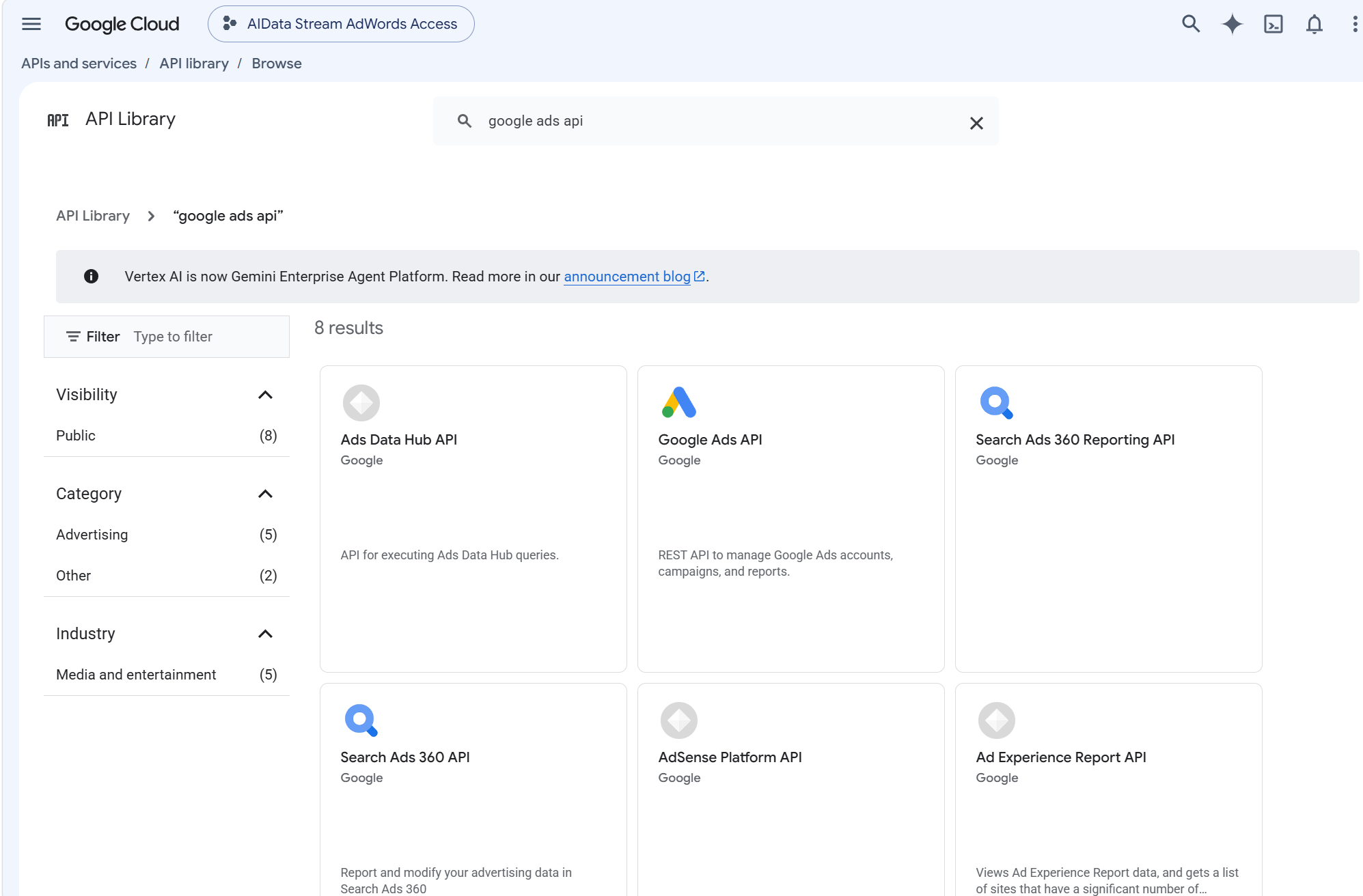
Open the API you need from the results, then click Enable:
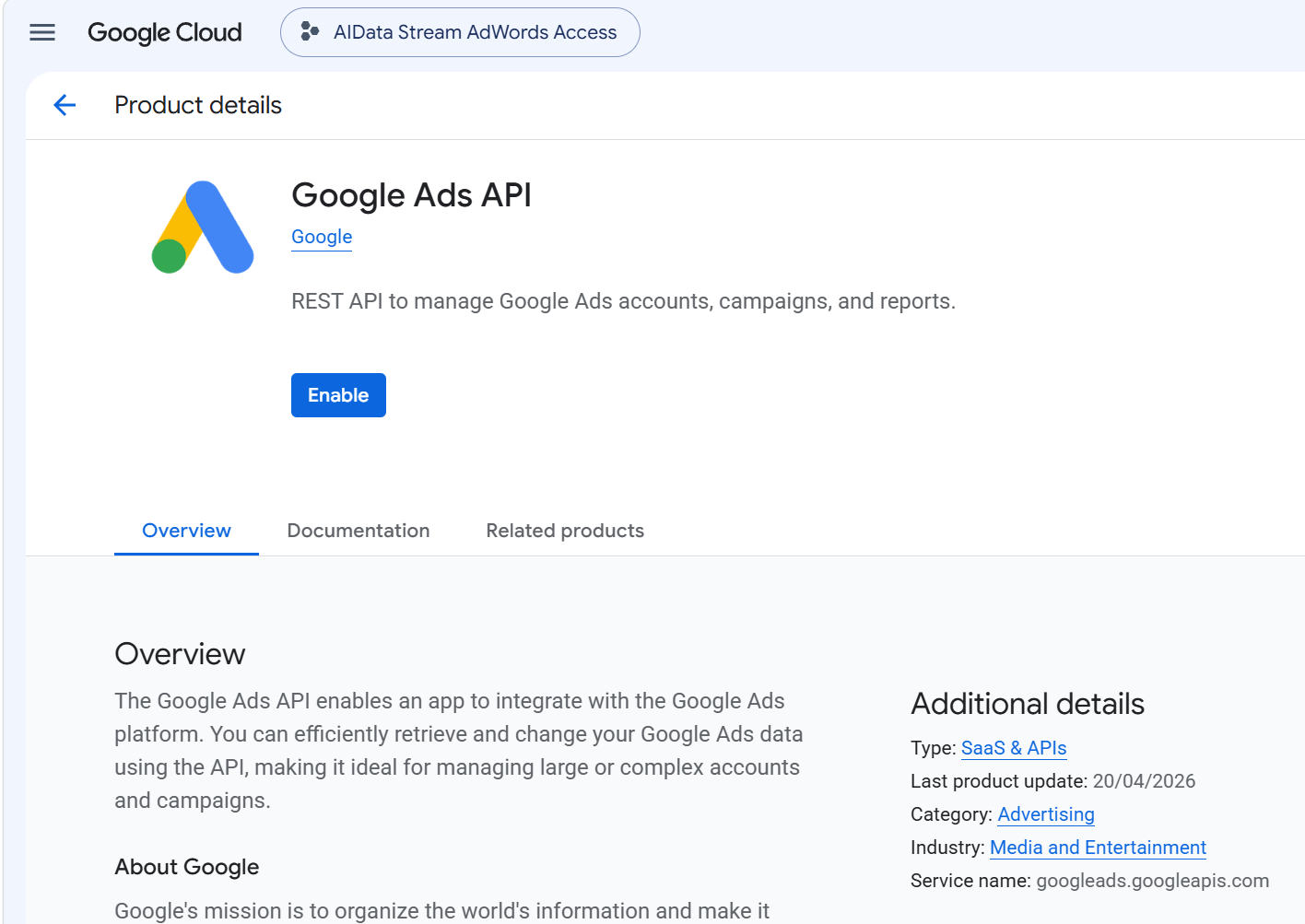
Step 3: Create the Service Account
- In the Cloud Console, go to APIs & Services → Credentials and click Create credentials → Service account (IAM & Admin → Service Accounts → Create service account gets you to the same form)
- Fill in the form that opens
- Give it a name like
aidata-stream- the generated email below the name field is the address you’ll be sharing your properties with - Click Create and continue
- Skip both optional steps (“Grant this service account access to project” and “Grant users access”) - the service account needs no roles in your Cloud project. Its access comes entirely from the sharing you’ll do in Step 5.
- Click Done
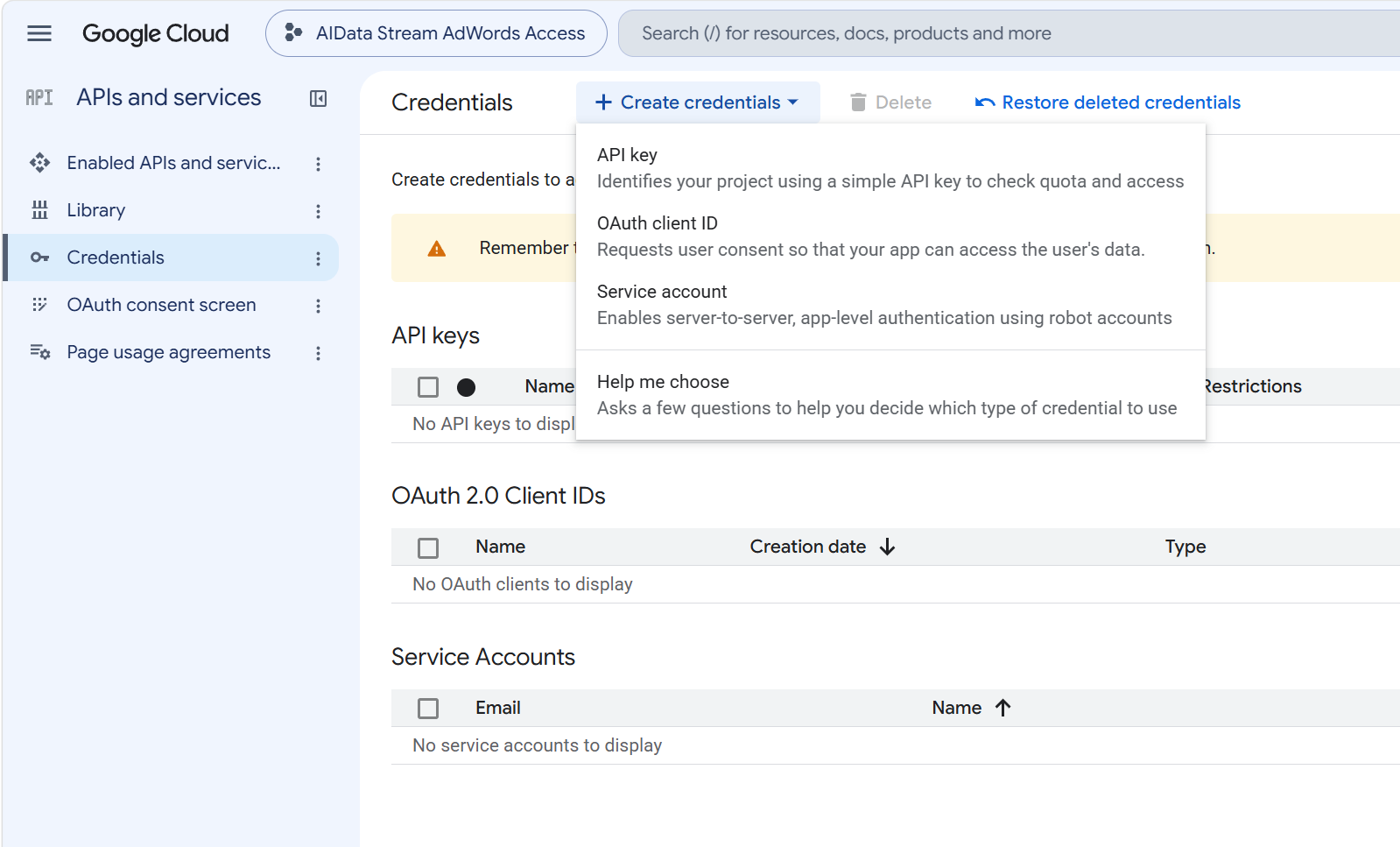
Step 4: Create a JSON Key
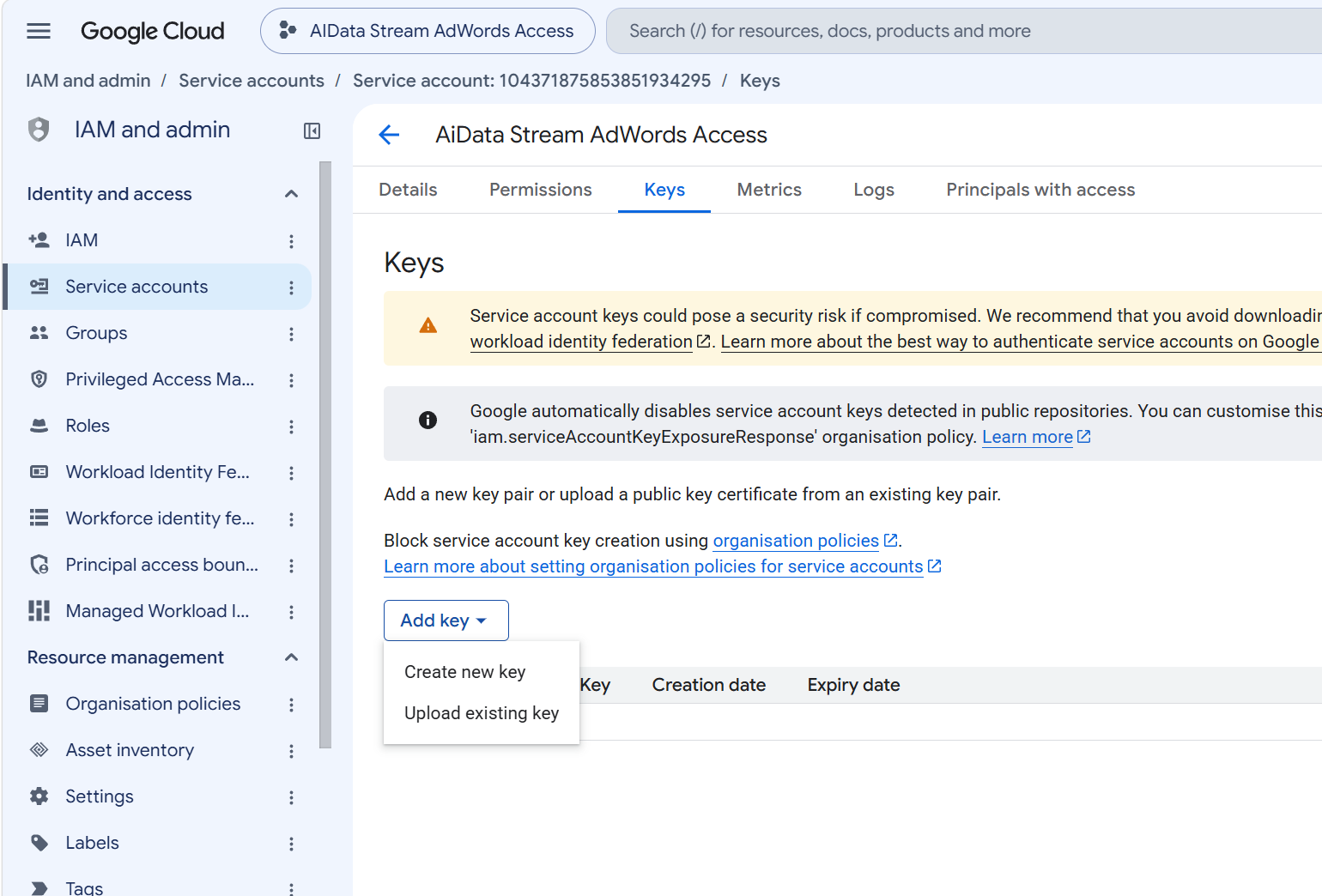
- On the Service Accounts page, click the account you just created
- Open the Keys tab
- Click Add key → Create new key
- Choose JSON and click Create
A .json file downloads to your computer. This file is the service account’s password - anyone holding it can read whatever data you share with the service account, so store it like any other credential and don’t commit it to a code repository.
Open the file in a text editor and find the client_email field:
{
  "type": "service_account",
  "project_id": "aidata-connections",
  "client_email": "[email protected]",
  ...
}
That email address is what you’ll add to each platform in the next step.
“Key creation is disabled” error? Newer Google Cloud organizations block service account keys by default (the
iam.disableServiceAccountKeyCreationpolicy). Your organization administrator can allow key creation for this project. Personal Google accounts aren’t affected.
Step 5: Grant Access on Each Platform
Add the client_email address as a user wherever you want the connection to reach. AI Data Stream is read-only, so the lowest read role is enough everywhere.
Google Analytics 4
- In Google Analytics, open the property and go to Admin
- In the Property column, click Property access management
- Click + → Add users
- Enter the service account email
- Untick Notify new users by email (a service account can’t receive mail)
- Choose the Viewer role and click Add
Viewer covers everything the AI needs for analysis. Choose Editor only if you want AI Data Stream’s annotations synced into GA4 as native annotations - creating those requires edit rights.
Google Search Console
You must be an Owner of the Search Console property to add users.
- In Search Console, select the property
- Go to Settings → Users and permissions
- Click Add user
- Enter the service account email
- Choose Full permission and click Add
Full is still read-only for our purposes and keeps every feature working, including URL inspection. Restricted also works if you only need search performance data.
Google Tag Manager
- In Tag Manager, go to Admin
- In the Account column, click User Management
- Click + → Add users
- Enter the service account email
- Set account permission to User
- Under container permissions, give Read access to the containers you want to connect
- Click Invite - service accounts are added without needing to accept
Google Ads
Google Ads accepts service accounts as direct users - no email invitation needs accepting.
- In Google Ads, open the ad account and go to Admin → Access and security
- On the Users tab, click +
- Enter the service account email
- Select the Read only access level - it covers all reporting
- Click Add account
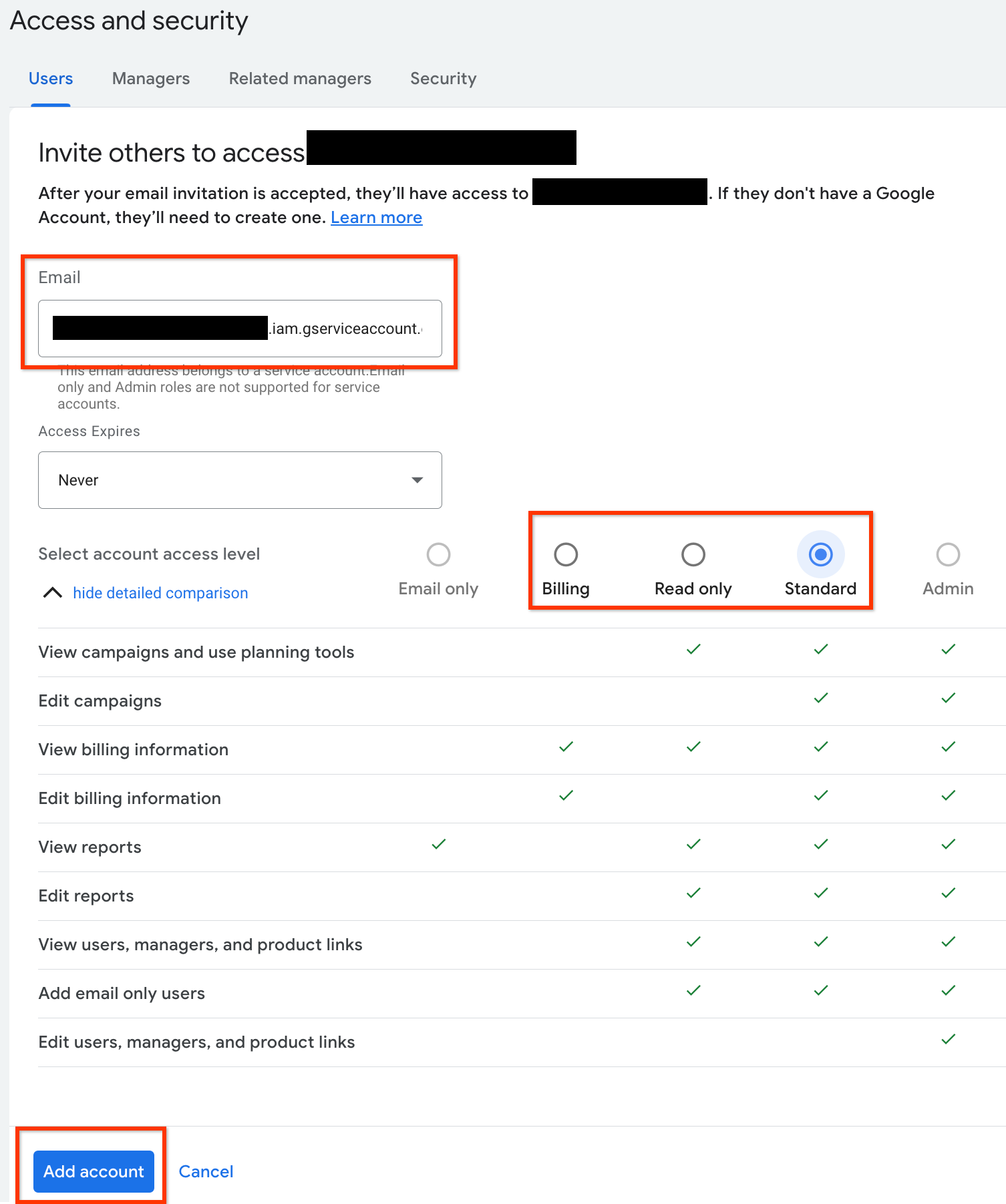
Image from the Google Ads API documentation, used under CC BY 4.0.
Add the service account to the ad account itself, not only to the manager account above it - manager accounts can’t be reported on. Once it has access, we list the accounts it can reach and you pick from a dropdown, so you don’t need to hunt for the customer ID yourself.
One more check: the Google Cloud project holding the service account needs Basic access to the Google Ads API - see the note at the top of this guide.
Step 6: Connect in AI Data Stream
- Open your property’s Connections tab and click Add Connection
- Select the connection type (Google Analytics 4, Search Console, Tag Manager, or Google Ads)
- Choose Service Account as the authentication method
- Open the downloaded
.jsonfile in a text editor, copy the entire contents (including the outer{ }braces), and paste it into the credentials field - We list every property the service account can see - select one and click Add Connection
Repeat for each connection type. The same JSON works for all of them, as long as the matching API is enabled and access has been granted.
Revoking Access
You’re in control at both ends, and can revoke at any time:
- Remove one platform: delete the service account’s user entry in GA4 / Search Console / Tag Manager / Google Ads. The connection loses access to that platform immediately.
- Kill the key: in Cloud Console, open the service account’s Keys tab and delete the key. Every connection using that JSON stops working.
- Delete the connection: removing the connection in AI Data Stream stops all use of the stored credentials. To revoke access completely, also delete the key in Cloud Console.
Troubleshooting
“No properties found” when connecting
- The service account hasn’t been granted access yet, or was granted on the wrong account - double-check you added the exact
client_emailfrom the JSON - Access can take a few minutes to propagate after adding the user - wait and try again
- For GA4, make sure the Google Analytics Admin API is enabled (it’s the one that lists properties)
- For Google Ads, manager accounts themselves never appear in the list: reports can’t run against them, only against the ad accounts beneath them
“Invalid JSON format”
- Paste the complete file contents, from the opening
{to the closing}- a partial paste or just the private key won’t validate
Error mentioning “API has not been used in project … or it is disabled”
- The API for that connection isn’t enabled in the service account’s own project - see Step 2. The error message includes a direct link to the right page.
“Permission denied” on a specific query
- The service account’s role was reduced or removed on the platform side - re-check its user entry there
Google Ads errors about access level, test accounts, or DEVELOPER_TOKEN_PROHIBITED
- The Google Cloud project holding the service account doesn’t have Basic access to the Google Ads API. Check Cloud Console → Google Ads API → Overview and apply for Basic access there, or connect Google Ads with Connect with Google instead, which runs under our approved application.
Next Steps
- Connecting Data Sources - all connection types
- Start a conversation with your data
- Understanding BYOK - the same bring-your-own-credentials idea, applied to AI providers